
IMC ONBOARDING MODULES
CLICK HERE TO BEGIN THE ONBOARDING 101 MODULE
MODULE 1: SOP
Welcome to the Standard Operating Procedures module. Please begin by watching the tutorial video below:
THE STANDARD OPERATING PROCEDURE
In addition to watching the tutorial video above, please read and review the following:
The following is a list of the steps required to successfully recruit truck drivers with IMC. You can click on each step for a more detailed breakdown, including best practices.
STEP 1: CALL PREP
STEP 1: CALL PREP QUICK LINKS
STEP 1a: SELECT A DRIVER ON HUBSPOT
During the onboarding process you’ll login to the following limited HubSpot Trainee account:
Username: trainee@imcpds.com
Password: IMCpds!!
Once you’ve completed the onboarding process you will receive your own fully activated HubSpot account to use for your recruiting activitites.
You can find candidates on HubSpot by conducting a name search or using the filters on the Contacts page. To help familiarize yourself with the features and basic instructions on all the powerful features of HubSpot, we recommend checking out the short video below.
To apply or remove filters, click on the Filter buttons accross the top of the screen.
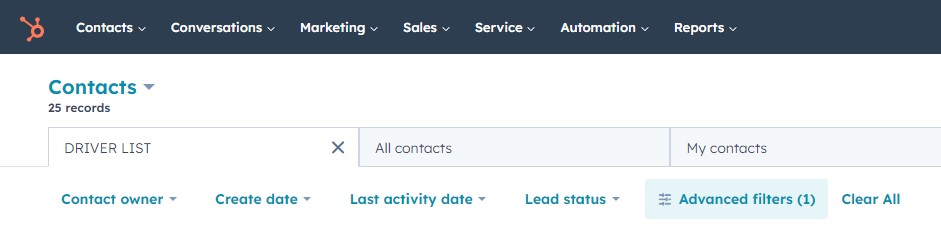
You can tell if a filter is applied by the presence of a blue highlight over that filter, as well as a number next to the Filter button indicating how many filters are in place.
ORGANZING CONTACTS
To change the order of the listed contacts, use the small arrows next to the column headings. For example, clicking the top arrow next to the Last Activity Date column will put the contacts most recently updated at the bottom of the list and untouched Prospects at the top of the list. Clicking the bottom arrow will put them in the reverse order, with the most recently updated Prospects at the top of the list.
NOTE: ALL EMAILS SHOULD BE SENT FROM YOUR IMC EMAIL ACCOUNT. NEVER SEND EMAILS DIRECTLY FROM HUBSPOT!!! If you send an email directly from HubSpot then the platform automatically updates contact ownership to whoever sent the email. We cannot change that setting. In order to actually take ownership of a driver contact you MUST get that driver on the phone and COMPLETE A PRE-SCREENING FORM, and then attach a copy of that form to the driver’s HubSpot profile.
This shows that you’ve at least had a meaningful enough conversation with the driver to determine whether or not we can help him at this time. If that has not happened, or if the driver hasn’t been contacted in 30 days, then they are fair game again.
STEP 1b: REVIEW DRIVER, JOB & CARRIER DETAILS
Before calling your prospect you’ll want to make sure you have the following tools ready to go, and all but the last two can be accessed from your Recruiter Dashboard page:
- The HubSpot CRM
- The Pre-screening Form
- The IMC Recruiter Account Mapping System
- The Grasshopper VOIP phone app on either your computer or smartphone
If you’re calling to discuss a particular job, it’s a good idea to pull up the Job Detail page and Application page for that particular account so you can familiarize yourself with the job details and application process for that carrier. This will help you to speak confidently and intelligently about the job in question, and to properly set driver expectations for the follow-up process after the application has been submitted. This is especially true if you’re starting with a specific job and calling several drivers in that hiring area.
At IMC we don’t worry about driver resumes because they are usually pretty useless. They are rarely kept up to date with the latest employment information, and they’ll never list disqualifying factors on a resume. Determining a driver’s verifiable experience and driving record are done during the Pre-screening stage to determine whether or not that driver is a good candidate.
The most important rule during the call prep stage is to not over do it. Chances are the driver you’re getting ready to call won’t even answer the phone, and even if they do there’s no guarantee that the job you’re looking at is going to be the one they want. You don’t want to suffer from paralysis by analysis. And you don’t need to. Our system is built to allow you to pivot from one opportunity to the next based on hiring areas and verifiable experience so that you can always find and present the right job, if we have it.
One thing you should do prior to the phone call is to make sure the driver’s address on file is within the hiring area for that job, but even that may be subject to change once you’ve gotten the driver on the phone.
Once you’ve spoken to the driver and have a complete picture of their situation, then you can do a targeted search using our state of the art Recruiter Account Mapping System. It’s built for speed, so once you get used to navigating the system, you can find alternative jobs and pitch them quickly while your driver is still on the phone. There will be more detailed information on how to do that later in the SOP.
STEP 1c: DIALING THE CALL USING GRASSHOPPER
- Launch the Grasshopper app on ether your phone or computer
- If using your computer, make sure the volume is turned up and your microphone is enabled
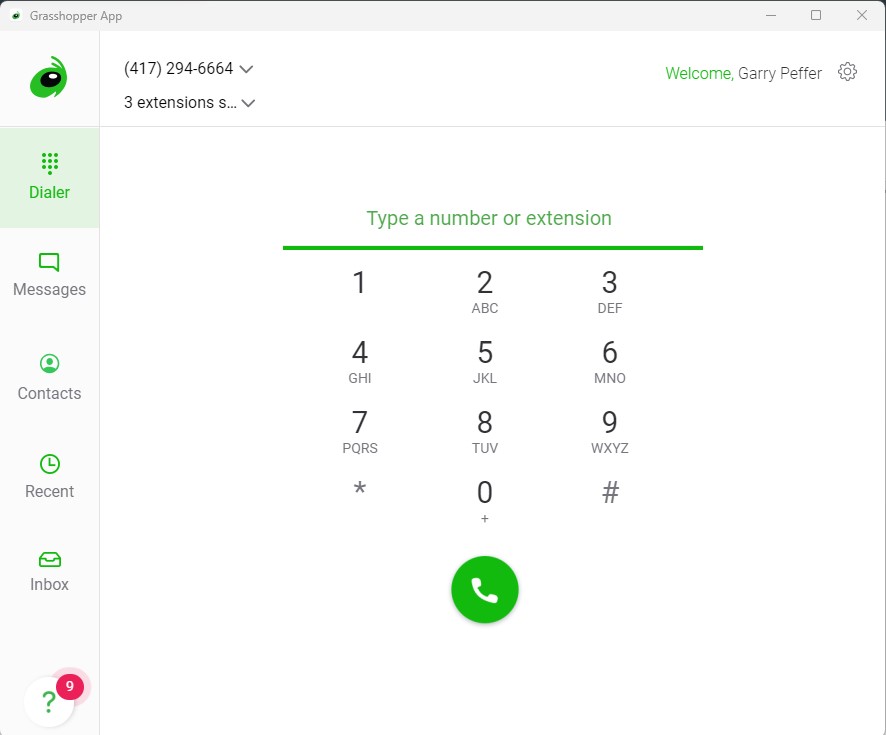
- Next, in the top left corner select the local phone number (417) 294-6664 and “All Extensions”
- Dial the number as usual

STEP 2: THE PHONE CALL
You’ll be using Grasshopper, our VOIP phone service to make and receive your business phone calls. Once you’ve completed the onboarding process, you will be given your own extension number on our local and 800 business numbers which will ring directly to your own personal phone or computer any time a driver calls and dials your extension.
Once you’re ready, you can also be added to the list of recruiters to receive incoming calls when a driver calls our number and holds for the next available representative. All the recruiters on the list will receive the call at the same time. The first recruiter to answer gets the active call. You must contact our Admin team to be added to that list.
Each job has its own customized script that will provide you with an outline to follow. This will help to keep the call productive and moving in the right direction. The scripts also include all the details for the job that the driver will need. If you prefer to not read the scripts word for word that’s fine, we’ve also set them up so that you can quickly and easily pull the info you need while being able to still use the overall flow as a guide.
THE PHONE CALL SCRIPT QUICK LINKS
LIVE CALL SCRIPTS (Specific job scripts are located on each job page)
When speaking to the driver, be sure to reference the job using the ad title that the driver responded to in our ads. They will not know who the carrier or account is until we tell them, toward the end of the call. The ad title is the ‘Role’ listed under the driver’s name in the top left corner of their Contact Details Page on EngageBay.
IS YOUR DRIVER POTENTIALLY QUALIFIED FOR THIS JOB?
– Do they live within the hiring area?
YES, THE DRIVER IS POTENTIALLY QUALIFIED
LIVE CALL SCRIPT FOR POTENTIALLY QUALIFIED DRIVERS
INTRODUCTION
“Hello, can I speak with _____? Hi this is __________ with IMC Professional Driver Services. How are you doing today? I’m calling about an application you had submitted recently on indeed for a [CUSTOM 1: INSERT AD TITLE HERE].”
“Hello, can I speak with __________? Hey [Driver], my name is ____ and I’m with IMC Professional Driver Services. We do recruiting for about 30 different carriers and I’m calling you today because we happen to have some openings in your area, and at some point you had indicated that you’d like to hear about those jobs. Do you have a few minutes to talk?”
“Just to give you a little background about IMC, as previously stated, we work with about 30 different carriers nationwide and so we’re always looking for good drivers. Our state of the art system tracks hundreds of jobs in real-time, so we always have a bird’s eye view on the industry and what opportunities are available.”
“The job we’re talking about today is [CUSTOM 2: INSERT AD TITLE HERE]
“Does that sound like something you’d be interested in?”
COMMON OBJECTIONS
THE PAY RATE IS TOO LOW
HOME DAILY ACCOUNTS
“I understand what you’re saying, but you have to realize that with these local accounts the fact that you’re home in your own bed everyday is basically part of the compensation. Most drivers are willing to take a bit less pay in exchange for that benefit. And most home daily jobs also require you to start with a night driving shift because the more desirable day shifts go to the drivers with seniority; typically those with years and years on that account.
REGIONAL & OTR ACCOUNTS
“I understand what you’re saying, but I’ll bet they didn’t guarantee you a certain amount of miles or pay per week. You need to understand that I talk to drivers every single day who took a job because the pay rate sounded really good, but now they’ve been sitting at the house for two weeks with a shiny brand new truck in the yard just waiting to get dispatched on a load. Their bills aren’t getting paid and so they call me back to ask if the job we talked about is still available. Sadly in most cases the answer ends up being no.
“The important difference here is freight volume. The carrier I’m trying to set you up with is a strong national carrier with excellent, reliable freight volume who is going to be able to make sure you’re getting your mileage in every week (and if applicable) this job has a guaranteed weekly pay of $________, so you’re going to be making money whether that truck moves an inch or not.
I DON’T WANT TO DRIVE AT NIGHT
“Most of the jobs we have require night driving at least to start. The more desirable day routes typically go to the drivers that have been on the job the longest; and that’s especially true for the local home daily jobs. Also, if you’re going to hold out for a day-time driving job, then there’s probably going to be a little less pay than what you’d be getting driving the night routes. Simply because, just like with home daily jobs, carriers know they can get away with paying a little less on those more popular accounts and shifts.
I DON’T LIKE THAT CARRIER
ME OR SOMEONE ELSE HAS HAD A BAD EXPERIENCE WITH THAT CARRIER
“Let me ask you this: As long as the paychecks clear when you go to cash them, what difference does it really make whose logo is painted on the side of the truck? I mean I understand if you or someone you know had a bad experience once, or maybe you’ve heard rumors about someone who did. But just like any other national company, there are good employees and there are bad ones. It doesn’t necessarily reflect on the entire company and all their employees.
“The other side of that coin is that if it’s someone else that had a bad experience, then you’ve got to realize that you and I weren’t there. We don’t really know the actual circumstances around any situation because there are always two sides to every story, and you’re making important, life-changing calculations for your own life and career based on the single side of someone else’s story. And for every bad experience you’ve heard about, I can name ten drivers who love that carrier and brag about them all the time. If you have a bad experience with a Walmart employee we don’t generally boycott Walmart for the rest of our lives. And likewise, a lousy dispatcher from Houston or wherever isn’t going to be in (DRIVER’S AREA). In fact, they probably won’t be tolerated at that carrier for long at all if they’re making their drivers quit, or asking them to do something illegal…
THAT CARRIER HAS A BAD REPUTATION
“There are certain carriers who are willing to give first time drivers a seat, and problem drivers a second chance. And fortunately that’s the case, otherwise there would be no place for new drivers to cut their teeth and gain the experience they need to progress in their career. And there aren’t very many drivers out there who have a perfectly clean driving record with no dings whatsoever for as long as they’ve been in a truck.
“At the end of the day what I’m proposing is just a temporary job; not a marriage. This is a strong and reputable carrier with really nice late model trucks and they boast a pretty high retention rate. They keep their drivers out on the road earning with good, steady freight volume, and this job will provide you with an immediate opportunity to earn good money while adding more experience to your resume so that we can get you an even better job a few months down the road. Some of their drivers may not be the best there ever was, but they’re earning paychecks that clear the bank every week. In your time there you can prove the stereotype wrong. Go out there and be the best driver on the road.
TOO MUCH HOME TIME
“Most of our carriers are more than happy to let you stay out longer and take less home time if you’d rather keep your wheels turnin’ and earnin’. I’ll double check with the carrier to make sure that’s the case with this particular account, and I’ll also put you in direct contact with one of their reps so that you can ask them any other questions that you might think of.
“In the meantime, let me go ahead and get a good application on file for you. These seats are extremely competitive, and our best shot at securing a seat for you is to go ahead and get your application submitted as soon as possible, because this particular account is really popular and tends to close quickly, so it’s important that we go ahead and get your hat in the ring as quickly as possible, while we still can. Once I have a completed application on file you’ll never have to do another application with us again. With each subsequent job you take through us we just update your info and send it on to the carriers for you, allowing for a much quicker, easier, and streamlined application process for you.
I HAVE TO TALK TO MY SPOUSE…
“Hey I can totally understand and appreciate that. We want everyone to be on the same page and excited about this opportunity. But I’ll tell you what, instead of you having to try and memorize and repeat all the important information about this job, how about we get on the phone with him/her on a 3-way call, so that way I can give both of you all the information at the same time? That way I can answer any questions he/she may have as well. Can we do that right now?
IF NOT NOW, SET UP A TIME WHEN YOU CAN CALL THE DRIVER BACK TO INITIATE A 3-WAY CALL.
YES IT DOES!
“OK, so first of all, let me ask you this..”
-What is it you’re currently doing, and what’s got you looking for a change today?
– Are you at least [CUSTOM 3A] years old?
– Do you have at least [CUSTOM 3B] verifiable Class A CDL Tractor Trailer experience within the last 3 years?
IF YES, DO THE PRE-QUAL, THEN
IF THE CANDIDATE IS BOTH QUALIFIED AND INTERESTED
“OK, so far everything looks good. Let me go ahead and give you all the details about the job and the carrier from top to bottom, and at the end if you have any questions I’ll be happy to track down any additional information for you that I don’t already have.”
DO A COMPLETE PRESENTATION STARTING WITH JOB DETAILS
AFTERWARD, MOVE ON TO THE CLOSE
THE CLOSE
“Did you have any other questions about the job or the carrier that I didn’t cover?”
(If you don’t have the answer or can’t find it, assure the driver that they will be contacted by a carrier rep and can ask more detailed questions within the next 24-48 hours)
THE ‘COME TO JESUS’ MEETING
“It looks like we may have a good match here and I’m confident that I can get you this seat. But before I submit your application with my name on it I need to make sure this is the job you want. If there are any other opportunities you’re interested in or waiting to see about, then I’d encourage you to go ahead and see about those jobs and then get back with me once you’re ready to commit to this opportunity.”
“When I submit an application to one of my carriers, I’m giving them the assurance that I have a qualified driver who wants the job and is committed to taking the seat if they get the offer. If that isn’t you then that’s fine, it’s not going to hurt my feelings, but I have to protect my reputation with our carriers”.
“If you’re ready to get orientation scheduled then I can go ahead and get your application submitted right now. And when this carrier sees our apps come in, they tend to put those up at the top of the stack because they know we bring them a lot of really good, highly qualified drivers.”
“Would you like to go ahead and get your application in process today?”
YES I WOULD!
PROCEED TO THE APPLICATION FOR
[CUSTOM 4: THIS JOB]
IF THE DRIVER ASKS, “CAN I DO THE APPLICATION MYSELF?”
PROCEED TO SPECIAL INSTRUCTIONS FOR
[CUSTOM 5: DRIVER SUBMITTED APPLICATIONS]
IF NOT QUALIFIED/INTERESTED:
I DO HAVE OTHER OPTIONS
“Well, unfortunately it sounds like this position may not be the best fit for you, but I do have another job in mind that I think may be perfect if you’d like to hear about that.”
I DON’T HAVE ANYTHING/I’LL GET BACK WITH YOU
“Unfortunately, it sounds like this position may not be the best fit for you, but like I said, we work with more than 50 carriers, so let me take a look at some of the other opportunities I have and then I’ll give you a call back as soon as I find something that’s going to be a better fit for you. Be sure to save my number so that when I call back you’ll know it’s me.”
“The job you applied for was a [CUSTOM 6: JOB DESCRIPTION], is that what you’re looking for, or how much home time are you needing to get?
“Are you willing to do some unloading for higher pay or do you prefer more of a Drop & Hook situation? And what kind of pay range do you need for a job to make sense for you?”
(Remind your driver that the home daily and no touch jobs are not going to pay as well as the home weekly, EOW and driver unload jobs do). Take notes on the driver’s responses and preferences.
“I’m going to send you our intelli-app link. Once you fill that out and submit it we’ll be able to see what we have that you may be interested in and qualified for. At that point I can just give you a call back and if you love the job we’ll have most of what we need to get an application submitted for you right away.
“Be sure to save my number so that you’ll know it’s me because if I call you back then it means I’ve found something that I think you’ll love!
NO THANKS…
“That’s the job you had applied for. What is it you’re actually wanting? (listen to the response)
ONCE YOU HAVE ENOUGH INFORMATION, GO TO GOOGLE EARTH TO LOOK FOR JOBS IN THE APPLICANT’S AREA THAT MEET THEIR PREFERENCES. IF YOU NEED MORE INFORMATION, CONTINUE WITH THE FOLLOWING PROBING QUESTIONS:
“What’s your preference on home time? Are you willing to do some unloading or do you prefer more of a Drop & Hook situation? And what kind of pay are you looking for?”
(Keep in mind, and remind your driver that the home daily, no touch jobs are not going to pay as well as the home weekly, EOW and driver unload jobs) Take notes on the driver’s responses and preferences.
I DO HAVE SOME OTHER OPTIONS
GO TO THE JOB PAGE FOR THE RECOMMENDED JOB
I DON’T HAVE ANYTHING/I’LL GET BACK TO YOU
“Let me go ahead and ask you just a few more questions to finish up our intake sheet and then I’ll get you off the phone. I think I may have some other jobs in your area that might be a better fit for you.
DO THE PRE-SCREENING
“Okay [DRIVER], I’m going to send you our intelli-app link. Once we have you in our system we’ll be able to see all the jobs that you’re qualified for and then I can just give you a call back as soon as I find something and if you love the job, then we’ll already have most of what we need to get an application submitted for you right away.
SEND THE INTELLI-APP LINK TO YOUR DRIVER:
INTELLIAPP LINK HERE
VOICEMAIL SCRIPT
“Hi, [Driver] this is _____ with IMC Professional Driver Services. I’m trying to reach you regarding an application you had submitted recently on indeed for a [CUSTOM 7: INSERT AD TITLE HERE]. Please give me a call back as soon as you can at (417) 294-6664, extension 70_. Thank you and have a great day!”
NO, THIS DRIVER PROBABLY DOESN’T QUALIFY FOR THIS JOB
LIVE CALL SCRIPT FOR A LIKELY UNQUALIFIED DRIVER
“Hello, can I speak with __________? Hi , this is _________ with IMC Professional Driver Services. How you doing today? I’m calling about an application you had submitted recently on indeed for a [CUSTOM 8: INSERT AD TITLE HERE].”
“I’ve been looking over your information and it looks like…
GO OVER POTENTIALLY DISQUALIFYING INFORMATION WITH THE DRIVER AND VERIFY ACCURACY TO OFFICIALLY DQ THEM.
THE INFORMATION WAS WRONG, THE DRIVER MAY BE QUALIFIED
THE INFORMATION IS CORRECT, AND THE DRIVER IS DQ
“Unfortunately, due to those factors I’m not going to be able to get you this seat today. But like I said before, we do work with lots of different carriers with lots of different qualifications and driver needs.
“I’m going to send you our intelli-app link. Once we have you in our system we’ll be able to see all the jobs that you’re qualified for and then I can just give you a call back as soon as I find something. Then if you love the job we’ll already have most of what we need to get an application submitted for you right away. So be sure to save my number so you’ll know it’s me calling you back!
SEND THE INTELLI-APP LINK TO YOUR DRIVER:
INTELLIAPP LINK HERE
VOICEMAIL SCRIPT
“Hi, [Driver] this is ________ with IMC Professional Driver Services. I’m trying to reach you regarding an application you had submitted recently on indeed for a [CUSTOM 9: INSERT AD TITLE HERE]. Please give me a call back as soon as you can at (417) 294-6664, extension 70_. Thank you and have a great day!”
STEP 3: PRE-SCREENING YOUR DRIVER
STEP 3: PRE-SCREENING QUICK LINKS
PRE-SCREENING OVERVIEW
Use the PRE-SCREENING form to evaluate your driver’s suitability for the desired job. If they turn out to be qualified then you’ll submit an intelli-app for processing. Fill out the pre-screening as completely as possible, but when it comes to the sensitive information items on the last page, don’t pry.
Some of the information on the very last page of the Pre-Screening questionnaire will be gathered during the course of conversation and populating the intelli-app. We do want to add that information to the Pre-Screening form as we obtain it, but asking for the more sensitive information before it’s necessary could spook the driver and short-circuit the process.
When you ask,
“What is it you’re currently doing, and what’s got you looking for a change today?”
- Pay attention to their response and start filling out the PRE-SCREENING form while your driver talks.
- Check for disqualifying stories and events in their response, and make note of them.
- There are sections at the bottom of the first and last pages of the form for notes. This is where you can tell their story of what they’ve been doing, or what they’re looking for, or not looking for, or to just jot down things that may be good to know later.
- Listen for any pain points/hopes, dreams or plans to help you sell the job.
SECTION 1: DEMORAPHIC INFO
Be sure to collect:
- Complete physical address info
- Phone number
- Email address
SECTION 2: DRIVER EXPERIENCE
- Record their total driving experience, noting how much of that experience was Regional/OTR versus Local work.
- If the driver has less than 1 year of Class A CDL experience pulling 53’+ trailers, YOU MUST record the name of their CDL school and the date of graduation.
- Find out if the driver has spent more than 12 months unemployed in the last 3 years. If so, that will automatically count as 1 of the 3 strikes against them.
SECTION 3: MVR & CRIMINAL BACKGROUND
Be throrough in your scrutiny because drivers will outright lie to you about their criminal background and MVR.. Encourage your driver to be honest with you. If it’s in their past, it will show up on their MVR, DAC, or Criminal background check. Present yourself as their advocate, and tell them that we can work with some dings, but we need to get out front and explain their side to the carrier instead of it just popping up on a report after claiming to have a perfect record.
*In actuality, we’re looking to eliminate them sooner than later so we can get on to the next qualified driver, instead of getting an application submitted and finding out several days later that it was a waste of time because the driver has accidents, incidents or convictions that they did not disclose.
SECTION 4: PERSONAL & FAMILY INFORMATION
Some questions on the last page of the Pre-Screening questionnaire involve sensitive information, such as Family Situation and whether or not they have school or college age children. These questions we don’t necessarily collect during the pre-screening, but want to record the information as we collect it during the application process.
This information is used to match drivers with carriers that have the most advantageous benefits programs for their situations. For example, a driver with college late high school or early college age children may be especially interested in a carrier that offers free college tuition to drivers and their dependents. In situations like that, certain benefits could equate to extra income for the driver. After all, a penny saved is a penny earned.
As you are filling out the Intelli-app and asking the driver for their information to complete the application, you should also copy/paste the information into your Pre-Screening Questionnaire form. If you aren’t submitting an application for them now, or if you’re sending them the application link to fill out themselves, then there is no need to collect that information at that time.
Remember that the information being collected is for the sole use and purpose of assisting truck drivers in obtaining jobs. All information is the property of IMC, LLC and must be properly maintained and secured at all times. Any misuse will be fully prosecuted to the fullest extent of the law.
Once you’ve completed the Pre-screening with your driver, go to your email and save a copy of the completed form to the Google Drive included with your email account, and then attach that form to the driver’s profile in HubSpot. Once you’ve completed and attached the Pre-screening form you can then change ownership of that contact to yours.
STEP 4: SUBMITTING AN APPLICATION
APPLICATION SUBMISSION OVERVIEW:
Watch the video below, provided by our partners at Class A Recruiting. The password for the video is “classa”.
Once you’ve completed the intelliapp and hit the submit button, be sure to copy the confirmation number. You’ll need to paste it into the Notes section of the Driver Management form, along with the other items spelled out in step 2 on each carrier’s Application page.

The New Application Submission (Driver Management) link can be found on your Recruiter Dashboard page.
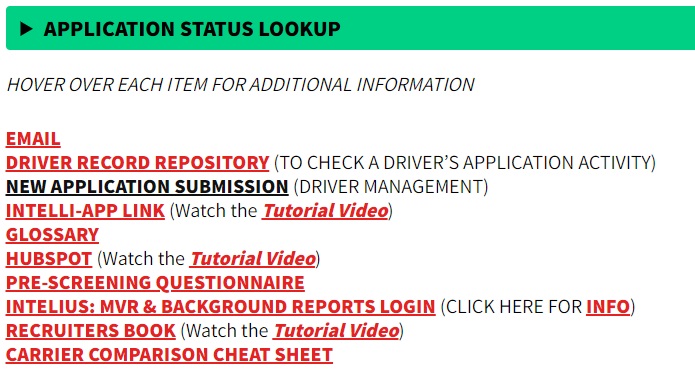
After you enter your driver into Driver Management, you can then go back and update the driver’s HubSpot profile with your newly obtained street address and personal email address, along with your notes. You’ll also want to be sure to attach the Pre-screening form and update the owner field to show your name.
NOTE: At the end of each business day any driver profile that does not have a Pre-screening attached will automatically be reverted back to unowned and thus will be fair game for any IMC recruiter.
Entering your driver into driver management is what notifies the admin team that there’s a brand new application waiting to be processed, and sets the wheels into motion. The faster and more smoothly the process goes, the greater your chances of getting a hire and a happy driver.
Once the Driver Management (DM) notification goes out, our admin team will review the application to ensure:
- The job is still open
- The driver lives within the hiring area
- The driver has the required verifiable experience
- The driver does not have any disqualifying issues
- The application is complete and correct
- You have submitted any and all additional required information for a complete application
A redacted copy of the driver’s intelliapp will be attached to their HubSpot profile shortly after their submission to Driver Management. Once the application has been submitted to the carrier and is officially being processed, you will find a Deal attached to the driver’s HubSpot profile with details about the application including the job applied for, current stage of progress, and the commission amount.
You can check the current status of a driver’s application along with any carrier updates using the Application Status Lookup on your Recruiter Dashboard.
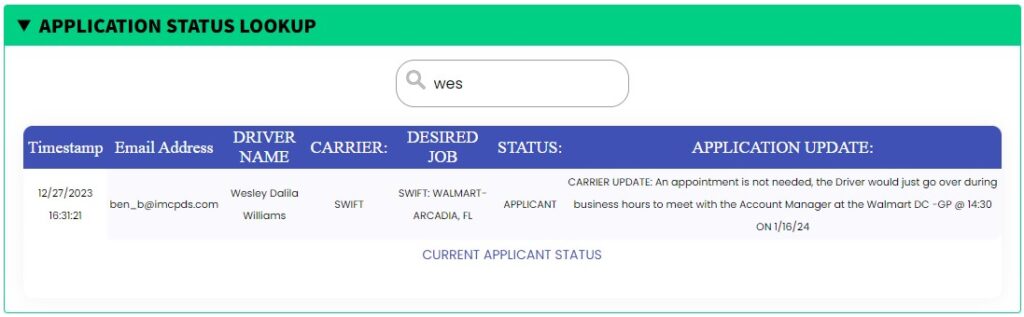
You can also get the latest status by visiting the driver’s Deal in HubSpot, which is created once your driver’s application has been reviewed and approved by the carriers. We’ll also send you an email and chat message anytime anything changes to make sure you always have the latest information on your driver’s app.
STEP 5: DRIVER FOLLOW-UP
FOLLOWING UP IS EVERYTHING!
Once an application is submitted it’s important that you stay in touch with your driver every day until they get to orientation; preferably by calling them. This is to make sure that they’re still engaged, excited, and planning on showing up to orientation and taking the job. Texting is a less effective alternative. You should set the expectation at the end of the application that you will be calling them daily until orientation; with the possible exception of weekends and holidays. Tell them you’re calling to make sure they haven’t won the lottery or been abducted by aliens, and to verify that they’re staying in contact with the carrier.
Anytime we receive an update on your driver’s application from the carriers, we will update their EngageBay profile, Driver Management, and send a notification to your IMCPDS email and chat. However, most of the time it will actually be you getting the updates from your driver, because not all carriers send out regular driver updates, and chances are that the carrier has spoken to your driver since the last time you did. So it will be the driver telling you about their most recent interaction with the carrier and where they’re at in the process.
We TELL the drivers that we’ll be calling them every day to GIVE them updates on their applications, but really we’re calling them to GET information and to make sure they stay sold on the job. Additionally, we’re wanting to monitor the application’s process to ensure that our driver is being handled properly by the carrier, and that their application is being processed in a timely manner. If there happens to be a hold-up somewhere along the way, then we can reach out to the carrier on your behalf to check on your driver’s application status.
STEP 6: GETTING PAID!
Commissions are distributed on Fridays of the WEEK FOLLOWING the driver’s dispatch date. Most orientation classes end on Wednesdays and Fridays, with the drivers’ dispatch days being on Thursdays and Mondays.
When you earn your first commission we will send you a notification and reach out to you so we can get your distribution information. We currently offer ACH, wire transfer, check, PayPal or Cash App. Subsequent commissions will be automatically distributed. IMC MUST be able to verify a driver’s hired status before any payout can be made.
TAKE THE MODULE 1: SOP QUIZ
MODULE 2: RECRUITER DASHBOARD
The Recruiter Dashboard will serve as your base of operations because it links together all the tools you’ll need to recruit drivers.
Please watch the tutorial video below, and then review the information that follows:
You can hover over each link on the Recruiter Dashboard for a detailed explanation for that link.
NOTE: Your IMC Professional Driver Services email account, Grasshopper extension number, and personal HubSpot account information will be given to you at the end of the onboarding process.
The Elements of the Recruiter Dashboard
The Ten Commandments of Recruiting
Make sure you read and strictly adhere to the Ten Commandments of Recruiting. Failure to follow the rules can result in the immediate termination of your contract.
The Bulletin Board
Important announcements are posted to the Bulletin Board. It is updated regularly so that only relevant information is posted. Make sure to check it often so that you’re up to date on the latest information!
The Tools of the Trade

Application Status Lookup
You can use the Application Status Lookup to get the latest update from the carrier on your driver’s application. To clarify, when you use the New Application Submission link, you are entering a driver into Driver Management (DM). When you finish filling out the form and hit submit, a copy of the form is sent to your email. Within that email is a button that will allow you update any information or attach any documents.
When you use the Application Status Lookup, it is pulling the information from Driver Management. The instant you submit that New Application Submission form, the information is instantly entered into the Driver Management file. The driver will show up in the Application Status Lookup immediately. You may need to refresh the page before you’ll be able to see it in the search.
Any time there’s an update from a carrier we will not only update Driver Management and the HubSpot profile, but you will also receive an email and a chat message in your G-Suite chat.
You’ll receive access to your new email account at the end of the onboarding process, and at that point you’ll be able to access the Recruiters Book and the Recruiter Account Mapping System.
We recommend using Google Chrome for your browser, and setting up a profile just for your recruiting business. Then update the ‘Startup’ options under settings to ‘Continue where you left off’. Then once you’re logged into your new recruiting email account anytime you click on the email link on your Recruiter Dashboard you’ll automatically be taken to your IMCPDS email account, and every time you open that Chrome profile you’ll always be able to pick right back up where you left off.
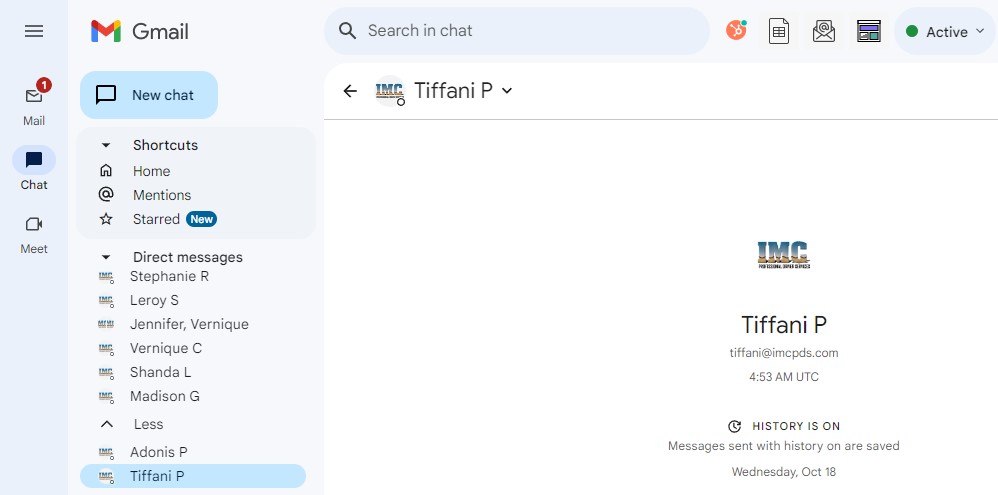
The ‘Chat’ module at the bottom of the toolbar on the left side of the screen is where you can communicate in real time with the Admin staff and other team members. The ‘Meet’ module is where you’ll join our Lunch & Learn and other teleconferences.
Driver Record Repository
The Driver Record Repository (DRR) is a compilation of all the reports we get from all the carriers about all the drivers they’re currently processing. We’ve been collecting them for years. So if a driver is getting rejected by carriers for some specific reason, we’ll know about it in advance so that you don’t waste any more time than necessary on unemployable drivers. All newly generated leads are checked against the DRR before being imported into our CRM.
We do go ahead and import the ineligible drivers, marking them as such in our system, so that we can quickly identify problem drivers as soon as their information comes in, and so that we can monitor when known events have expired, making the driver possibly employable again. The DRR Lookup is provided on your Recruiter Dashboard so that you can check your own generated leads against the database.
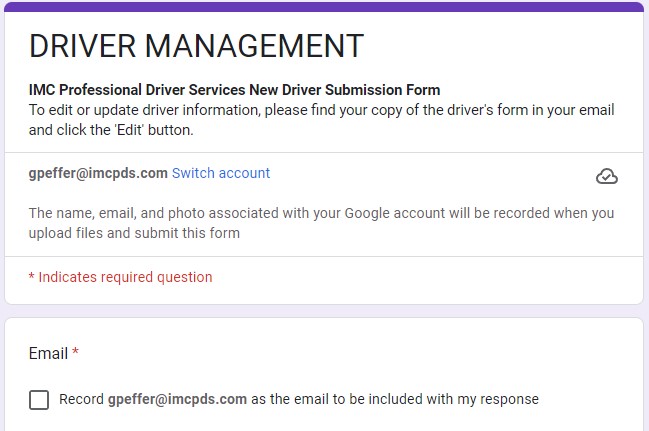
New Application Submission
This is the Driver Management portal. We won’t know you’ve submitted an application for processing unless and until you enter the driver’s information into this form and submit it. The information you enter here is what you’ll see in the Application Status Lookup, and it will show up in Driver Management as soon as you hit the submit button.
The Intelliapp Link
This is the link you use to submit an application to get a driver hired. It’s the exact same link for every job, and is located on every carrier’s application page. When you submit your application it will first come to our Admin team for an internal review. If it passes, then the complete application packet will be sent to the carrier for processing.
The Glossary
In The Glossary you’ll find working definitions for several common industry terms. For the most part, these definitions are also included on the Job Detail pages and in the Recruiter Account Mapping System for your convenience.
HubSpot
HubSpot is our CRM, or Customer Relations Management tool. That’s where you’ll find our database of active drivers, including new leads that are imported daily. You can also import your own leads. Any leads that you import yourself are not subject to the same ownership rules as IMC provided leads. Any leads you personally generate and import will remain yours and yours alone in perpetuity.
It’s important that you always keep good detailed notes in HubSpot so you and our admin team will always know what’s going on with your driver. This includes logging any emails or phone calls, and attaching any documents you get from them including their Pre-screening form, resume, or Intelli-app. Copies of the drivers’ Class A CDL and medical card should only be submitted via the Driver Management Portal, and never attached to the HubSpot profile.
When we receive an Intelli-app for a driver, we redact the date of birth and social security number before we upload it to their HubSpot profile. That way you you’re able to review the applications on file while keeping sensitive driver information safe.
You can check out a good HubSpot overview video here:
The Pre-screening Questionnaire Form
The Pre-screening form is a tool you use once you get the driver on the phone to make sure that they meet or exceed all the minimum requirements with regard to verifiable experience, employment history, Motor Vehicle Record, and criminal background. Once you finish the Pre-screening form you should know whether or not your driver is qualified for the job in question, or any job at all.
If the driver is qualified, then you want to go ahead and fill out the Intelli-app yourself, with the driver on the phone. The application entire application process takes about 45 minutes to an hour on average, so you don’t want to waste a lot of valuable time doing applications on drivers who aren’t going to get hired.
If the driver isn’t qualified then let them know that they’re not qualified for this job right now but that you’ll see if you can find something for them, then thank them for their time and get off the phone and on to your next driver. We’d like to help them all, but we simply can’t. They own their records, it’s not your fault or your problem if they can’t drive or can’t keep a job because of a hot temper or inability to get along with account mangers, or dispatchers, or whatever else.
The pickier you are about the drivers you work with, the better the return on your time investment in the drivers you do work with. Remember, you only need to get one or two drivers hired per month to make a great living, so be picky. Talk to many, but choose to work with only the best drivers. The Pre-screening, when properly done, is your tool to separate the good from the bad.
Intelius: MVR & Background Reports
We’ll note again that the Intelius reports are not FCRA compliant. The FCRA compliant reports are expensive. Our carriers all run them at a cost of about $300 per driver as part of the vetting process. A cheaper alternative is the Intelius service we use. Since the Intelius reports are not FCRA compliant, they cannot be used in connection with determining employment eligibility. So we won’t do that. But we can run an Intelius report on a driver while we’re doing the Pre-screening for conversation starters and things to ask about when we get to the MVR and Criminal background sections of the Pre-screening.
These reports can give you an idea of things that may come up on the actual carrier reports: the Motor Vehicle Record (MVR), criminal background check, and the Drive-A-Check (DAC), which every one of our carriers run on every driver. This can help “refresh” the drivers’ memories and help them to be more forthcoming about things they may otherwise have chosen to conveniently forget for the duration of your phone call.
Problem drivers don’t really like to discuss their driving records. They’ll tell you instead that they have a perfectly clean MVR & criminal background, only to learn 3 days later that they’ve been DQ’d by the carrier for having 15 tickets, 2 wrecks and a domestic abuse conviction from two years ago. Had you known those things you may not have spent an hour doing the app.
The Recruiters Book
The Recruiters Book contains all the same information as the Recruiter Account Mapping System in a searchable and filterable spreadsheet format. It includes a list of all the jobs and carriers for which we’re currently actively recruiting, including details for all the jobs and carriers. It also has a tab listing all the ads that are currently being run by IMC and our recruiters. The Recruiters Book is updated in real-time just like the mapping system.
You can also copy the Route ID or Code from the Recruiters Book and paste it into the bottom search bar of the job mapping system and go straight to that job on the map. If you click on the Route ID then you’ll find a link that takes you to that Job’s detail page. If you click on the Carrier’s name it will take you to a page with additional information about that carrier and their routes.
The Carrier Comparison Cheat Sheet
The last link in your Tools of the Trade is the Carrier Comparison Cheat Sheet. This resource has information for all the carriers we recruit for, active or not, with a breakdown and comparison of every policy for each carrier. Part of this resource is also located on one of the tabs in the Recruiter’s Book for quick comparison of carriers.
The Carrier Comparison Cheat Sheet will tell you which carriers do which drug tests, which carriers have what kinds of cameras in the trucks and when they’re activated, or what speeds the trucks are governed at, along with basic requirements for every category such as tickets, accidents, terminations, maximum number of jobs per year, and more.
TAKE THE MODULE 2: RECRUITER DASHBOARD QUIZ
MODULE 3: GRASSHOPPER VOIP PHONE SERVICE
GRASSHOPPER PHONE REFERENCE SHEET
GRASSHOPPER DESKTOP & SMART PHONE DOWNLOAD
QUICK REFERENCE FOR TRANSFERRING CALLS (You can save as an image)
What is Grasshopper?
Grasshopper is a VOIP or ‘Voice Over Internet Protocol’ phone service. That means the phone call is transmitted over the internet instead of phone lines or cell towers. Therefore, as long as you have a good reliable internet connection, you should have clear and reliable phone service for talking to drivers, even in places where cell coverage is spotty! For best results we recommend cable internet with wi-fi. That way both your computer and phone can easily connect and be used to make and receive phone calls.
2 phones in 1
Grasshopper allows you to always have your business phone on you without having to carry a second phone, or having to give out the number to your personal phone. When drivers want to call you, they just dial either one of our business numbers and then enter your personal extension number when prompted. You can also be added to the list of recruiters to receive incoming phone calls from highly motivated drivers calling in once you’re ready.
In your phone you’ll want to create a new contact with a name like IMCPDS (IMC Professional Driver Services), or ‘IMC’, or something that will tell you it’s the business calling, and save the phone numbers (417) 294-6664 and (833) 446-2737. When a driver calls, your personal phone will show IMCPDS on the caller ID and you’ll know it’s a business call coming in instead of a personal call or marketer.
Be mindful of the fact that if a driver calls your extension and you let it go to voicemail, they’ll be hearing your personal phone’s voicemail because Grasshopper is simply transferring the call from their number to yours. So you’ll want to make sure that your phone’s voicemail is set up, and that the message is something that will represent you well to the drivers trying to reach you.
If you can, you might want to create a new contact book on your phone so that you can keep all your recruiting phone numbers separate from your personal contact list. Then you can save the names and numbers of the drivers you’re working with to help you call them quickly when you need to, instead of having to go look up their phone number every time. The desktop app also allows you to save contacts.
You can download the Grasshopper app to your computer and/or smartphone using the download link above. When you want to make a phone call using your smartphone, just launch the Grasshopper app and use the dialer inside of the app to dial the call instead of your phone’s regular dialer.
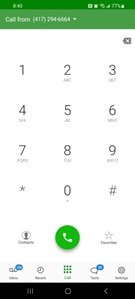
At the top you can choose whether you call out on the local number or our 800 number. We recommend using the local number. You’ll have better luck because not many people answer incoming calls from 800 numbers. You’ll also have better luck if you try calling right back a second time if the call goes to voicemail the first time. Robo calls don’t call right back again but real people do when it’s important.
If you want to use the Grasshopper desktop app, just log in when you’re ready to start your day and make sure that your sound and volume are on and turned up. When you have an incoming call your computer will ring just like a phone! You’ll click the green button to pick up the call and talk to the driver, or the red button to skip the call and either send it to voicemail if they dialed your direct extension, or to go on and be answered by another recruiter if the driver was holding for the next available representative.
When using the Grasshopper desktop app, make sure that you’re using the local number, and that you have your extension selected, along with the main extension and the First Available Rep extension – if you’ve been added to the list to receive incoming phone calls.
Grasshopper Phone Features
With the Grasshopper desktop and smartphone apps you can place drivers on hold and even transfer them to another extension/number when using the Grasshopper VOIP service. You have the choice of a regular transfer, where you just send the call to the other phone number or extension, or a warm hand-off where you speak to the person you’re transferring to before connecting the call.
Note that you can only transfer an incoming call. The service will not allow you to transfer a call if you were the one who originally initiated the call. However, any incoming call can be transferred to another phone number or extension number. Just follow the procedures below:
To place a caller on hold:
Desktop App
- While on an active call, select
 . Your call will be placed on hold.
 - Enter the extension number you’d like to transfer the call to, followed by #.
- Optional: To return to the call, enter * before entering an extension.
Smartphone App
- While on an active call, dial # twice. Your caller will be placed on hold.
- Dial 2 to initiate the transfer.
- Enter the extension number you’d like to transfer the call to, followed by #.
- Complete the transfer with one of the following options:
- To transfer the call now, press 1.
- To remain on the line, press 2, then press # twice to complete the transfer.
MODULE 4: THE RECRUITER’S BOOK
FIXING THE RECRUITERS BOOK
IF THE RECRUITERS BOOK APPEARS BLANK (OR MOSTLY BLANK) AND IS NOT FUNCTIONING CORRECTLY, SIMPLY DELETE EVERYTHING EXCEPT THE TOP LEFT CORNER, CELL A1. TYPICALLY, THE EASIEST WAY TO DO THIS IS BY CLICKING THE UNDO BUTTON IN THE TOP LEFT CORNER OF THE SCREEN (OR BY PRESSING CTRL+Z) UNTIL THE RECRUITER ACCOUNT BOOK RETURNS TO IT’S NORMAL STATE.
***The mapping system is currently and continually undergoing updates and upgrades to make it faster and more dynamic. Some of the information in the video above is slightly dated. Now when a job closes, it is immediately removed from the mapping system. It will still show up in the Recruiters Book for a couple days. If it does not reopen within that time then it will be removed from the Recruiters Book until it reopens again.***
AD LISTINGS
The Ad Listings tab lists all the current ads being run, including the Job ID, ad title, geographic location where the ads are being run, and what publications/services/job boards/etc. This will help you be better prepared for incoming phone calls because these are the jobs that the drivers will be calling to talk about.
This tab corresponds to the CURRENT ADS box in the Recruiter Account Mapping System. If you click the box next to that folder it will light up all the hiring areas for the jobs listed on this tab. If an ad closes or if the job closes, that job listing is automatically removed from map. When a driver calls in just ask them for their zip code and enter it into the top search bar in Google Earth Pro. Once the driver’s location is pinpointed, you’ll be able to see where he lives in relation to the advertised hiring areas and you can then determine or at least narrow down which job they’re calling about.
ROUTES
The Routes tab is a complete alphabetized listing of all the jobs and carriers for which we are currently actively recruiting. The information on this page changes frequently as carrier needs and job details change. The information on this sheet directly drives what is seen in the Recruiter Account Mapping System and on our job detail webpages, so you won’t encounter different information in different places. The listings are sortable and filterable. You can use Filter Views to manipulate the information and find routes that meet specific criteria.
The Route ID’s and Job Codes can be used to quickly pull up any job within the Recruiter Account Mapping System. Just copy and paste the Route ID or Job Code into the BOTTOM search bar in Google Earth Pro. Remember that the top search bar is for real world locations, and the bottom search bar is for searching our Recruiter Account Mapping System.
NOTE: If you paste a Route ID or Job Code into the bottom search bar and get a red field with no results, check to see if a blank space was included after the Route ID or Job Code. If so, just eliminate that space and if the job is open, then you will instantly jump to that job and it will be highlighted in the left pane. If you don’t see the job right away, try scrolling down a bit. It will likely be down just beyond where you’re able to see until you scroll down a bit.
CARRIERS
The Carriers tab gives a quick and easy reference by which to check and compare various carrier requirements and limitations. IMC has a general rule of any 3 strikes disqualifying a driver; be they tickets, accidents, incidents, criminal convictions, job terminations, etc. But each active carrier’s information is available for review in case you want to make sure your driver will meet the carrier’s requirements.
COUNTS
The Counts tab simply gives a statistical and visual breakdown of where the drivers in our database are located by state. If you want to find a concentration of drivers and pitch jobs in that area, then this tool will help you to pinpoint the geographic locations with the greatest concentration of drivers to call on.
TAKE THE MODULE 4: THE RECRUITER’S BOOK QUIZ
MODULE 5: THE RECRUITER ACCOUNT MAPPING SYSTEM
TUTORIAL VIDEO CHAPTERS
00:00 INTRODUCTION
03:01 PART 1: SETUP
04:06 LOGGING INTO AND POPULATING THE R.A.M. SYSTEM
06:24 PART 2: LAYOUT OF THE R.A.M. SYSTEM
8:03 SEARCH BARS
10:53 JOBS BY LOCATION
17:14 JOBS BY CARRIER
18:11 NO EXPERIENCE REQUIRED
18:21 ORIENTATION MAPS
19:07 CURRENT ADS
20:14 R.A.M. SYSTEM HELP
20:30 PART 3: USING THE R.A.M. SYSTEM
25:03 PART 4: THE RECRUITERS BOOK
27:46 USING THE MAP & RECRUITERS BOOK TOGETHER
PART 1: R.A.M. System Setup
First, DOWNLOAD GOOGLE EARTH PRO to your computer and install it.
1. Save the Ram System Setup file to your computer.
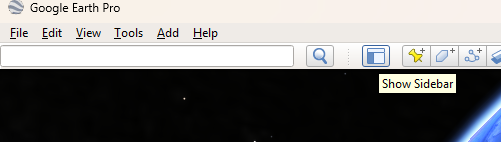
2. Launch the Google Earth Pro app & make sure you can see the left pane with the ‘Places’ and ‘Layers’ windows. There is a ‘Show Sidebar’ toggle switch to show or hide it in the top left corner of the screen.
3. Delete everything in the ‘Places’ window so that you only have the ‘My Places’ and ‘Temporary Places’ folders.

4. Open the ‘Ram System Setup’ file you just saved to your computer.

5. Drag the resulting folder up to ‘My Places”

6. Go to ‘File’ and click ‘Save My Places’
7. Click the arrow next to ‘The R.A.M. System’ folder, then click the big ‘CLICK HERE TO LOGIN’ link to log into the system. The login credentials will be the same as your IMC email account login credentials.


8. Once you’re logged in, click the ‘Back to Google Earth’ button in the top left corner of the browser window.
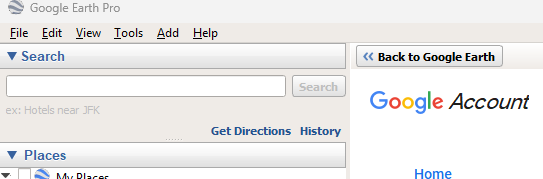
9. Click on the triangle icon next to ‘The R.A.M. System’ folder to reveal the login link and the the ‘TransporTunity R.A.M. System’ network link. Click the box next to the TransporTunity R.A.M. System’ network link so that it shows a checkmark, then right click on ‘TransporTunity R.A.M. System’ and select ‘Refresh’ to populate the map.
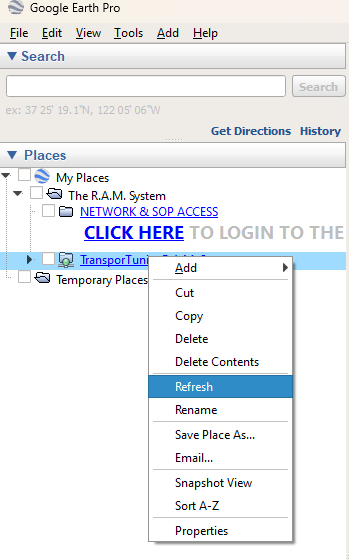
When done correctly, the little light on the The R.A.M. System network link will go back and forth and eventually turn green. You’ll also see a popup window with the version number and latest updates. If you’re already logged in, then the map will automatically populate when you click the box next to the ‘TransporTunity R.A.M. System’ network link.
10. Next, click the little arrow next to ‘The TransporTunity R.A.M. System’ to reveal the subfolders of the mapping system.

If the map does not populate, then double check that you’re successfully logged in to the system by clicking on the Network & SOP Access login link to bring up the login window, and then click the top link in the box to login to the Map.
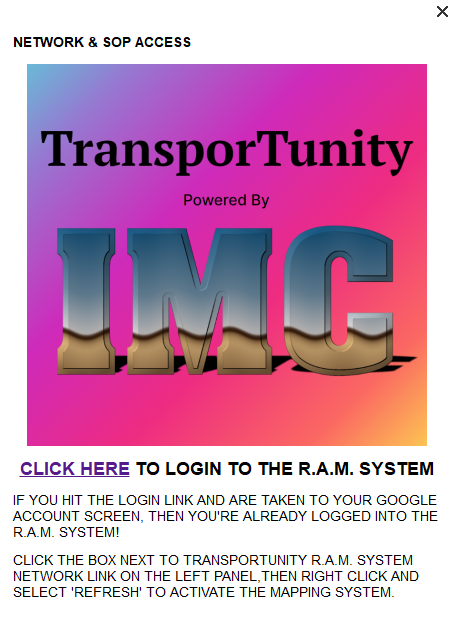
If you ARE logged in, then your Google Account page should load in the browser screen. If it does not, try logging in again with the CLICK HERE TO LOGIN link. To refresh The TransporTunity R.A.M. System network link connection, click the box next to ‘The TransporTunity R.A.M. System’ so that it has a checkmark, and then right click on it and select ‘Refresh’.
PART 2: USING THE RECRUITER ACCOUNT MAPPING SYSTEM
When you first log in to the R.A.M. system you should see 2 main areas. One is the mapping area which takes up the biggest part of the screen, and along the left side of the screen you should also see a sidebar pane with 2 separate areas: Places and Layers.

If you do not see the pane to the left, then you need to locate and click the icon to open the pane on the left. You’ll find it in the top left corner of the screen next to the search bar.
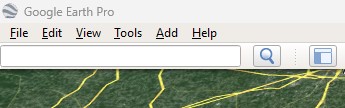
For now we’ll minimize the Layers section and just focus on the main map area and the Places pane. You should see a search bar at the top of the left pane, and another one at the bottom of the Places pane. The top search bar is used to search real world locations such as addresses, cities, and zip codes. It will mainly be used to pinpoint the locations of your drivers. The bottom search bar is used to search for elements within our system, such as Route ID’s and Job Codes.
The TransporTunity R.A.M. System folder will contain six (6) subfolders with checkboxes next to them. They are CANDIDATE POOL, JOBS BY LOCATION, JOBS BY CARRIER, NO EXPERIENCE REQUIRED, CURRENT ADS, ORIENTATION MAPS, and RECRUITER DASHBOARD. The first four (4) of these folders will also have a small horizontal arrow next to them, meaning that they too can be further expanded to reveal more subfolders. Once you click on the arrow to expand the subfolders, you’ll see that the position of the arrow changes to point down.
JOBS BY LOCATION
The JOBS BY LOCATION folder contains all the open jobs for which we are currently actively recruiting, categorized by geographic location. It is a reflection of the Recruiters Book. Within the JOBS BY LOCATION folder, jobs are further sub-categorized by their location into either the NORTHEAST, NORTHWEST, SOUTHEAST, or SOUTHWEST folder, depending on where the job is located. Jobs listed above these 4 quadrants are typically nationwide OTR hiring areas that transcend the quadrant designations.
Once you determine a driver’s location you’ll only need to see the jobs in that area, since nearly all carriers require a driver to already live in a hiring area before they can apply for that job.
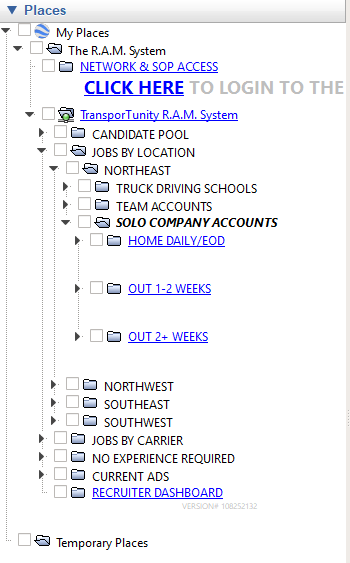
The subfolders help us to organize the available jobs so that we can focus in on the geographic area that our driver lives in, and be able to quickly find not only the types of jobs they’re looking for, but to also easily identify the most attractive jobs in their area so that you can maximize your chances of pitching something that will interest the driver.
If you click a box, it will populate the map with all the hiring areas in all the subfolders within that parent folder. If you were to light up all the hiring areas at once, it would be visual chaos. Thus the use of the subfolders to help organize and differentiate the many jobs in our system into categories.
Once you get into the individual quadrants you’ll find the main categories of Home Daily/EOD (Every other day), which is a listing of the local routes in that quadrant, Out 1-2 Weeks, which is a listing of primarily Regional jobs, and Out 2+ Weeks which would be mostly comprised of OTR jobs. Within each of those categories you’ll find further subcategories including BEST JOBS folders, which compare all the jobs in our system with the other jobs of that type and groups them according to which ones have the best pay, home time, or require the least amount of effort for the money.
You can see the qualifiers for each job type by clicking on the job type itself. For instance, if you click on Home Daily/EOD, you will see a window that lists the minimum amount of pay, home time, or amount of effort required to qualify as a best job in that category.

In the example above, a local job would have to pay at least $1,400/wk to qualify for best pay. It would have to offer at least daily home time with 2 consecutive days off per week in order to qualify as Best Home Time. For Best Effort it has to be drop & hook, no-touch freight, which means all the driver has to do is drive. No loading or unloading, no waiting for people to load or unload. Just easy money. If a job were to qualify for all 3 categories, then it will be located in a BEST PAY/HOME/EFFORT folder. If it only qualifies for one of those, then it will be in the corresponding folder.
Clicking the box next to the BEST PAY/HOME/EFFORT folder will light up the hiring areas for all the jobs in that folder. This way you can see the very best jobs we have to offer in a give area with just one mouse click instead of having to dig and search for the best jobs. Just find out what is most important to your driver, and then click the boxes next to the appropriate categories to reveal any options in their area. Clicking the box next to HOME DAILY/EOD will light up all the local hiring areas. The more open jobs we have in a given area, the more the subcategories begin to matter.
A hiring area has 3 basic elements:
- The shape, showing the area in which the driver must live in order to be geographically qualified
- The inside color of the shape, indicating whether it’s LOCAL (green), REGIONAL (yellow), or OTR (red)
- The color of the border on the outside of the shape, indicating the commission level being paid for a particular job.
The highest paying commissions will show up as a white ring around the hiring area. These are the GOLD level jobs. SILVER level jobs will have a silver ring around them, and BRONZE level jobs will have a black ring around them. This way you can quickly see which jobs will pay YOU the most commission. Bear in mind that the harder jobs to sell usually have higher commissions, and easier jobs to sell, the more attractive jobs to the drivers, will usually have a lower commission.

When you click on one of the hiring areas, it will bring up a window that contains a summary of the pertinent details for that job, including the current status, number of open seats, exact commission amount, and a summary of the pay/home time/job info so that you can give drivers some basic information for the open jobs in their area when trying to find a good fit for them.

Highlighted text means that you can hover over the word and get a working definition, in case you happen to come across an industry specific term with which you are not familiar. If the highlighted word is also underlined, that means there’s a link to a popup image of the item being defined, since a picture is worth a thousand words.
At the bottom of each job information window you’ll find a link that will take you to the Job Details webpage for that job, where you’ll find complete job and carrier details, the scripting for that job presentation, a link to our Driver Pre-Screening form, the Intelli-app link to get the application started, and more. We recommend opening these pages in your browser so that the formatting and functionality will be correct.
To do this, just click the link at the bottom of the Job Summary window and then follow the instructions on the screen, clicking the ‘Open in browser’ button at the top right corner of your screen. We typically use and recommend Chrome, but the browser you use is up to you.


JOBS BY CARRIER
The JOBS BY CARRIER folder lists all the jobs in our system, but here they’re categorized first by carrier, then by home time. This is also where you’ll find detailed information for each carrier’s orientation, including location, travel, lodging, and pay details.
When you use a Route ID or Code to search the mapping system for a specific account, the search begins on the highlighted folder and proceeds downward through all the sub-folders until the first time it finds that account. So make sure you have the desired folder selected as the starting point for your search before you paste the Route ID or Job Code into that bottom Google Earth Pro search bar.
NO EXPERIENCE NEEDED
The ‘No Experience Needed’ folder lists all the jobs currently open that will take trainees, or drivers with no Class A CDL truck driving experience outside of truck driving school. Most carriers require a 120+ hour truck driving school in order to be considered for employment as a trainee. This folder is also further subdivided into the four quadrants of the united states so you can focus in on the driver’s location.
Again, the accounts listed above the quadrants are the OTR jobs with hiring areas so large that they transcend the quadrants. Typically they include all 4 quadrants, so instead of listing them 4 times we just list them once above the four quadrants.

CURRENT ADS
The CURRENT ADS folder is a listing of the jobs for which there are currently running ads. This folder corresponds to the AD LISTINGS tab in the Recruiters Book, and is designed to help make it easier to help drivers who are calling in to talk about an ad they saw. Incoming calls are some of the best because the drivers are highly motivated and usually among the more employable of those you’ll talk to. This way you don’t have to fumble and search while trying to figure out what job they’re calling to talk about.
When a call comes in just click the box next to CURRENT ADS and put the driver’s city/state or zip code into the top search bar of Google Earth Pro and you’ll be able to see which hiring area they live in, and so you’ll immediately know which job they’re wanting to talk about. A driver will usually only fall into one hiring area, as we typically spread our ads around.
ORIENTATION MAPS
When doing the job and carrier presentation for the drivers, they’ll want to know where orientation will be held. You can find that information in the ‘Jobs by Carrier’ section in a special folder called, ‘Orientation Information’. Just click the box next to that folder to light up all their orientation locations and see which one is nearest your driver. Each carrier will also have a code that will allow you to quickly access the appropriate orientation folder for that carrier, such as EPESORT, for Epes, etc.
That section will also typically include all the pertinent information as far as lodging, meals, travel type, what to bring, and other detailed orientation information. The icon for an orientation location will appear as the best/most desirable form of transportation that the carrier is willing to pay for, be it a bus ticket, rental car, plane ticket, etc.
RECRUITER DASHBOARD
This is simply a quick and efficient way to get to your Recruiter Dashboard from the mapping system if you don’t already have it open. Remember that if you aren’t already logged into our website, then you’ll have to log in and then re-open the page from Google Earth Pro into your browser window.
SPECIAL NOTES:
1. When you copy/paste a Route ID or CODE from the RECRUITERS BOOK into the Recruiter Account Mapping System, you may have to hit the backspace once for the system to recognize it. This is because the copy/paste process sometimes adds a space at the end. If you’ve removed the space and still don’t find the desired route, that most likely means it has been closed and removed from the map.
2. If you’re using a VPN you may have trouble logging into the Google Earth Pro browser to access the mapping system. If you get caught in an endless loop of selecting/entering your account login information but never get to your Google Account screen, try disabling your VPN long enough to get logged into the mapping system, and then turn it back on again.
3. If you click on a hiring area and either the job status window or the commission window fail to load, you can force them to refresh by right clicking on the window, selecting ‘Open Frame’, and then hit the circular ‘Refresh’ button at the top right corner of the next screen. This will force the window in question to reload.


TAKE THE MODULE 5: THE RECRUITER ACCOUNT MAPPING SYSTEM QUIZ
OTHER TUTORIAL VIDEOS & RESOURCES
HUBSPOT TUTORIAL
CALL ANALYSIS: ADAPTING TO THE DRIVER
RECRUITER PHONE CALL INSIGHTS
INDUSTRY INSIGHTS
4/9/25 Job Boards & Aggregators and Posting Ads on Facebook with a Landing Page
3/13/25 What To Expect From Driver Expectations
12/6/24 FMCSA Clearinghouse Rule Puts Bullseye on Freight Capacity
12/6/24 Trucking Demand and Capacity Edge Closer to Equilibrium
12/6/24 Ryder Truck Rental Growth Hints at Freight Market Recovery
Resources to Study For Posting Job Ads
INTERVIEW WITH ADAM MILLER, CEO OF KNIGHT/SWIFT
FAQ’s
Q: What kind of computer do I need?
A: Any laptop or desktop computer is fine as long as it supports the Google Earth Pro application. Chromebooks will not run our mapping system correctly. We recommend a computer running the latest version of the Windows operating system.
Q: What kind of phone do I need?
A: You will also need a smart phone so that you can run the Grasshopper phone application to make and receive calls using your IMC phone number and extension.
Q: Where can I find a computer and smart phone that will do the job for a great price?
A: We have some excellent options available in the Tech section of our IMC Merch website.
Q: Why is there a one time non-refundable registration fee?
A: Many will take a look at this opportunity and eventually decide that it simply isn’t for them for whatever reason. Or they may decide that the timing just isn’t right at the moment. While we’re happy to give everyone the opportunity to take control of their future, there is a cost involved with getting each recruiter set up in all of our systems so that they’ll have access to everything they need to give it their best shot.
Q: What happens if I don’t hire any drivers?
A: Once registered, you’ll have 30 days to get your first driver hired. Any month that you get a driver hired and earn a commission, the next month’s access to our system is free. If you go 30 days without a hire we consider you to be inactive and will suspend your account. Like any other job, if you fail to produce then you lose the opportunity.
Q: What happens once my account has been suspended?
A: If your account is suspended because you failed to produce a hire within any 30 day period, you can purchase a 30-day subscription. Only recruiters with an active account can collect commissions on drivers or sub-recruiters.
Q: What is a sub-recruiter?
A: If you get a friend or family member or someone else to sign up for this opportunity, then they will be listed as your sub-recruiter and you will receive a 5% override on their commissions. This money is paid by the company, and does not come out of your sub-recruiter’s commissions. If your sub-recruiter goes on to sign another sub-recruiter of their own, then your sub-recruiter will get 5% on those hires and you will receive a 3% commission override. All further levels of downline will pay you a 1% override. Please note that you must have an active account to collect sub-recruiter commissions by either getting a hire at least every 30 days yourself, or by paying for a 30-day subscription.
Q: What if I work for another recruiting company but want the incredible advantage of the IMC Recruiter Account Mapping System?
A: Our Independent Recruiter Package is a scalable and customizable solution for existing recruiters or carriers who would like their own version of this incredible platform!
Q: What if I use IMC generated driver leads to recruit for another company?
A: All driver leads information is owned by IMC, LLC and is provided solely for use with the IMC intelli-app link. If you steal leads to hire for another company, your contract will be terminated immediately and you will be permanently banned.
Q: What if I want to use my own CRM or data management system instead of HubSpot?
A: You are an independent contractor and welcomed to use whatever methods will best help you to be successful. While the leads, Grasshopper, HubSpot and other tools are made available to you free of charge, you are not required to use them. If you choose to use them, remember that all data and information provided by and/or collected for IMC are the sole property of IMC.